Adding Images to Pre- and Post-Service loop
The image slideshow in the pre- and post-service loops are linked together, so when you edit one of them, the opther will update as well.
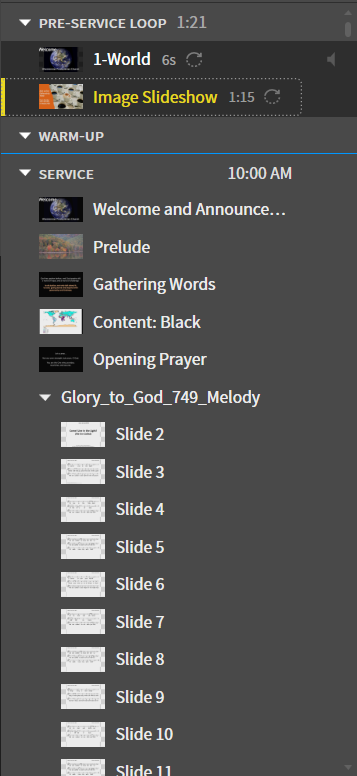
1. Navigate to Image Slideshow
Navigate to the Image Slideshow in the Pre-Service Loop.
2. Import or Browse for Image
Add an image by clicking the Choose Image button above the existing images on the left side.

You can either browse for an image in the image library by selecting Browse Media or import an image from your computer by selecting Import... in the drowdown.
A. Browse Image Library
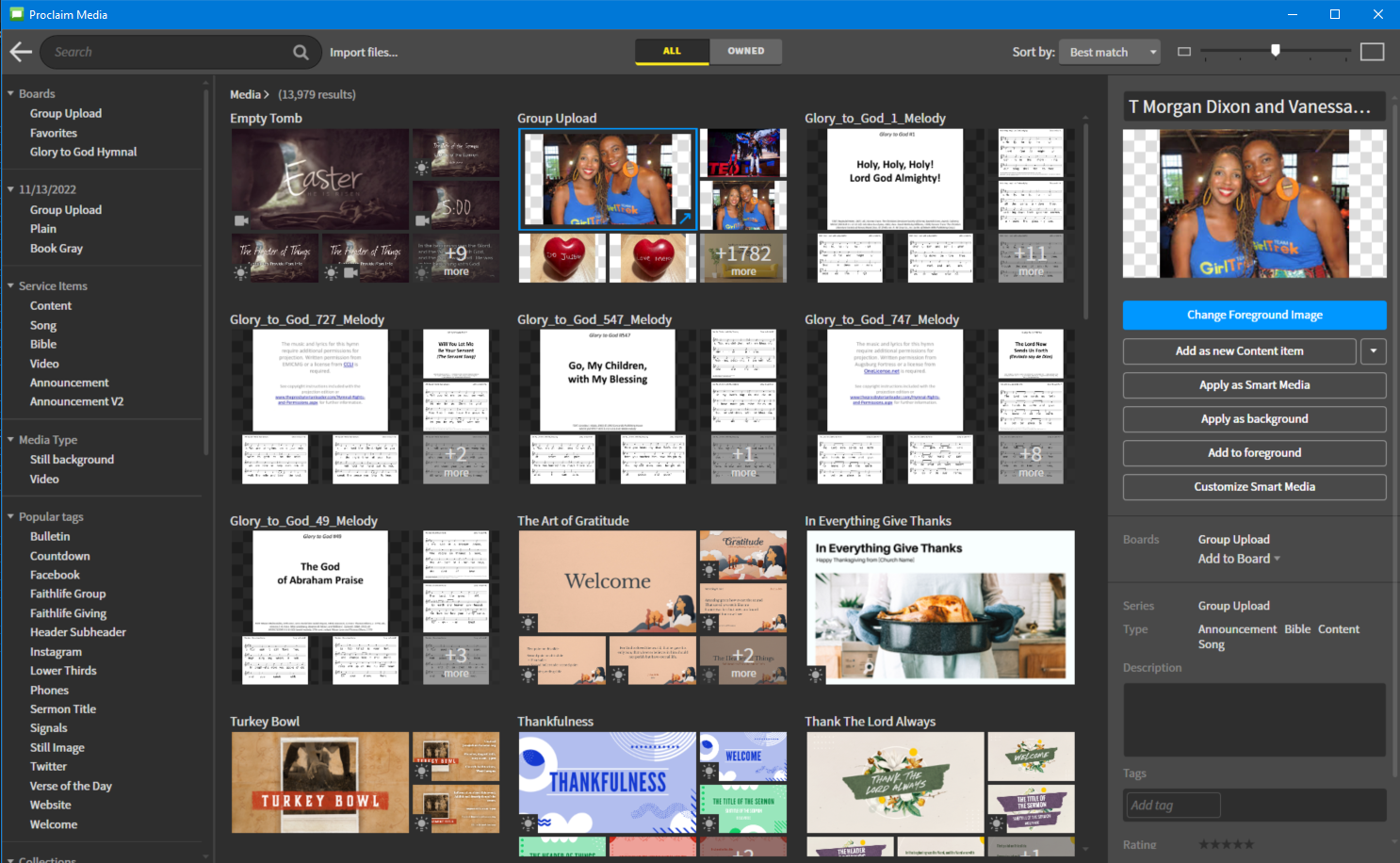
You can browse the image library by selecting Browse Media. This will bring up the media library. Look under the Group Upload for images. Most all the other options require a subscription to use. These are the images that we have uploaded. Click the +1782 more (or however many the number is at that point) in the bottom right corner of the group upload section or the Group Upload text at the top of that section to view all the uploaded images.